Help home Getting started
Getting started
New to Siyan Stride? Start here. This page shows how to get the app, make an account and finish setup.
What is Siyan Stride?
Siyan Stride is a walking app. It counts your steps for you, helps you set a daily step goal, and keeps you going with plans, badges and friendly groups.
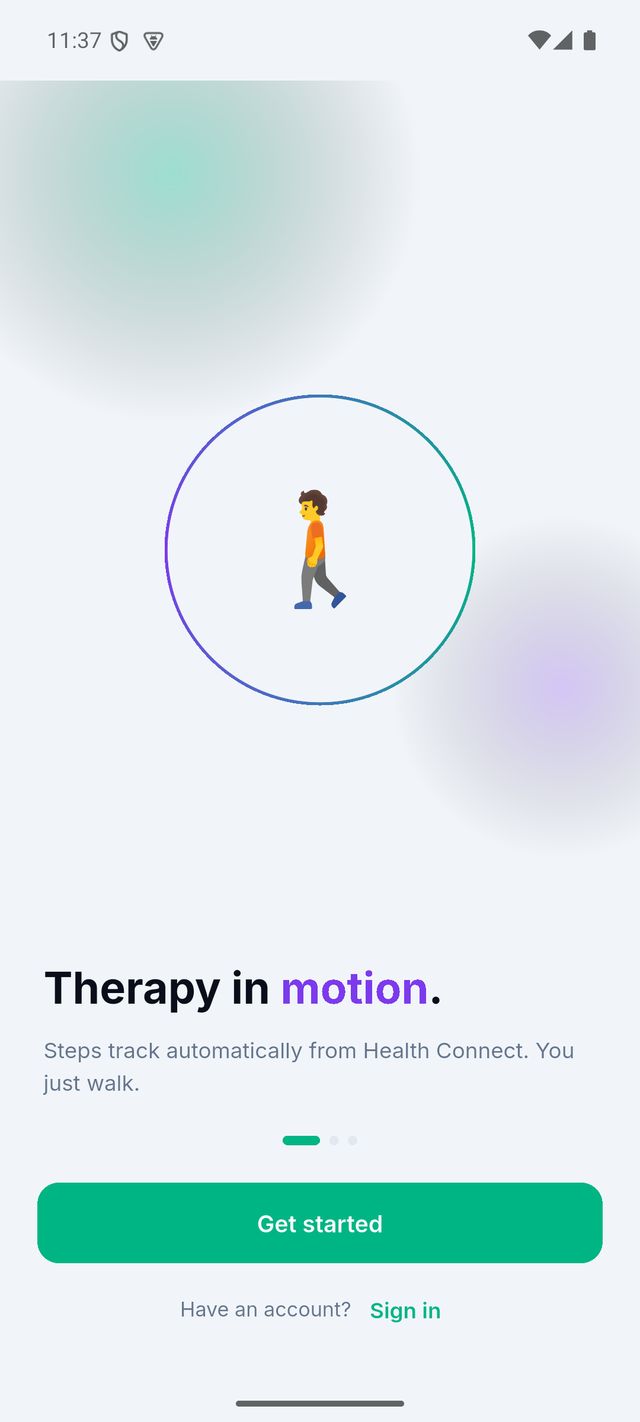
You do not need to type in your steps. The app reads them from your phone’s health app. On iPhone this is Apple Health. On Android it is Health Connect.
Siyan Stride is for wellness. It is not a medical device and it does not give medical advice.
How do I get the app?
The app is free to download.
- On iPhone, open the App Store. On Android, open Google Play.
- Search for Siyan Stride.
- Tap Get (iPhone) or Install (Android).
- When it is done, tap the Siyan Stride icon to open it.
You can also use these links: App Store or Google Play.
Which phones work with Siyan Stride?
Most iPhones and Android phones from the last few years work.
- iPhone: iOS 16 or newer is best.
- Android: Android 10 or newer is best. The phone needs Health Connect. Newer Android phones already have it. On older phones, the app helps you get it from Google Play.
Good to know: The app is in English only for now.
Do I need an account?
Yes. An account keeps your steps, plans and groups safe. It also lets you use the app on a new phone later.
You can sign up three ways:
- Continue with Apple (iPhone only)
- Continue with Google
- Continue with email (your email and a password)
How do I make an account with my email?
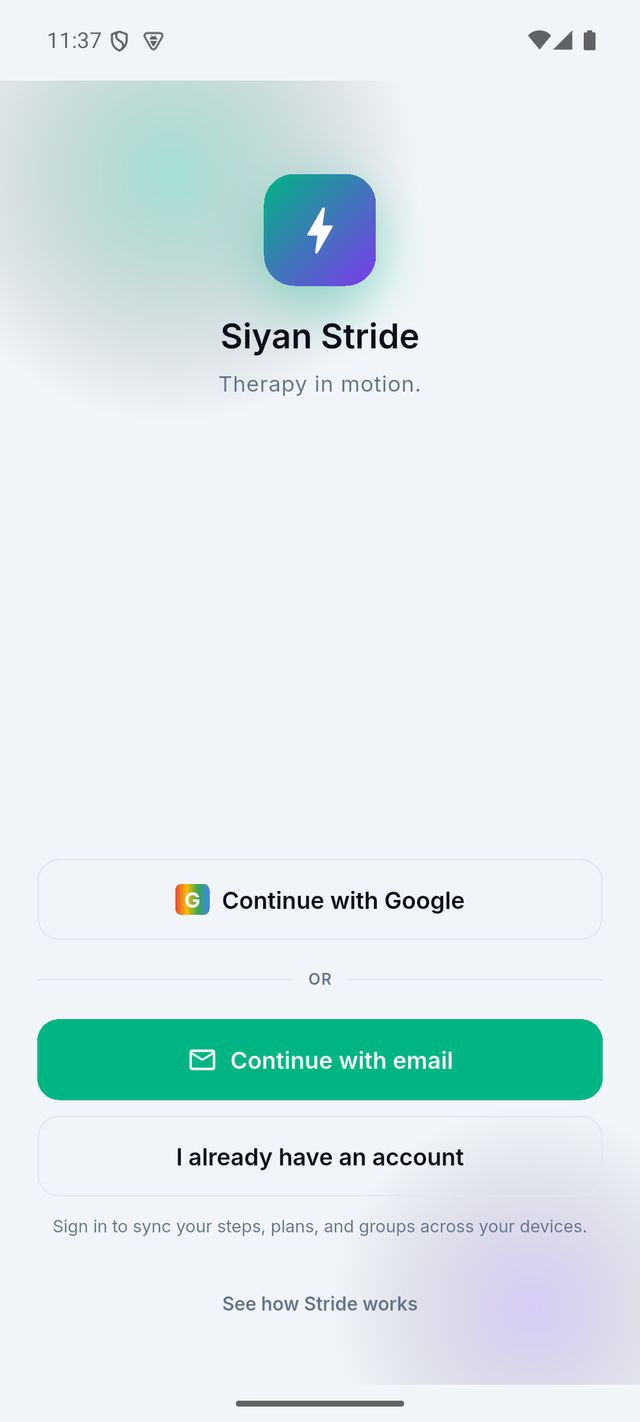
- Open the app and tap Continue with email.
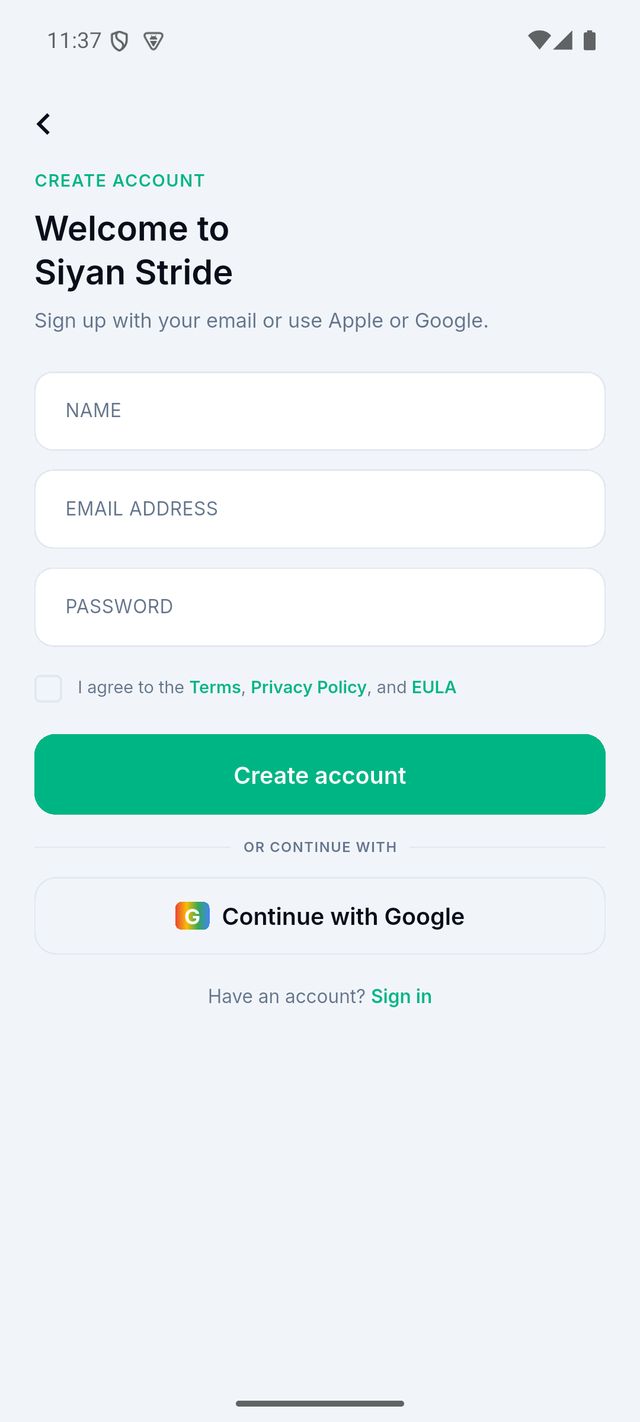
- Type your name, your email address and a password. The password needs at least 8 letters or numbers.
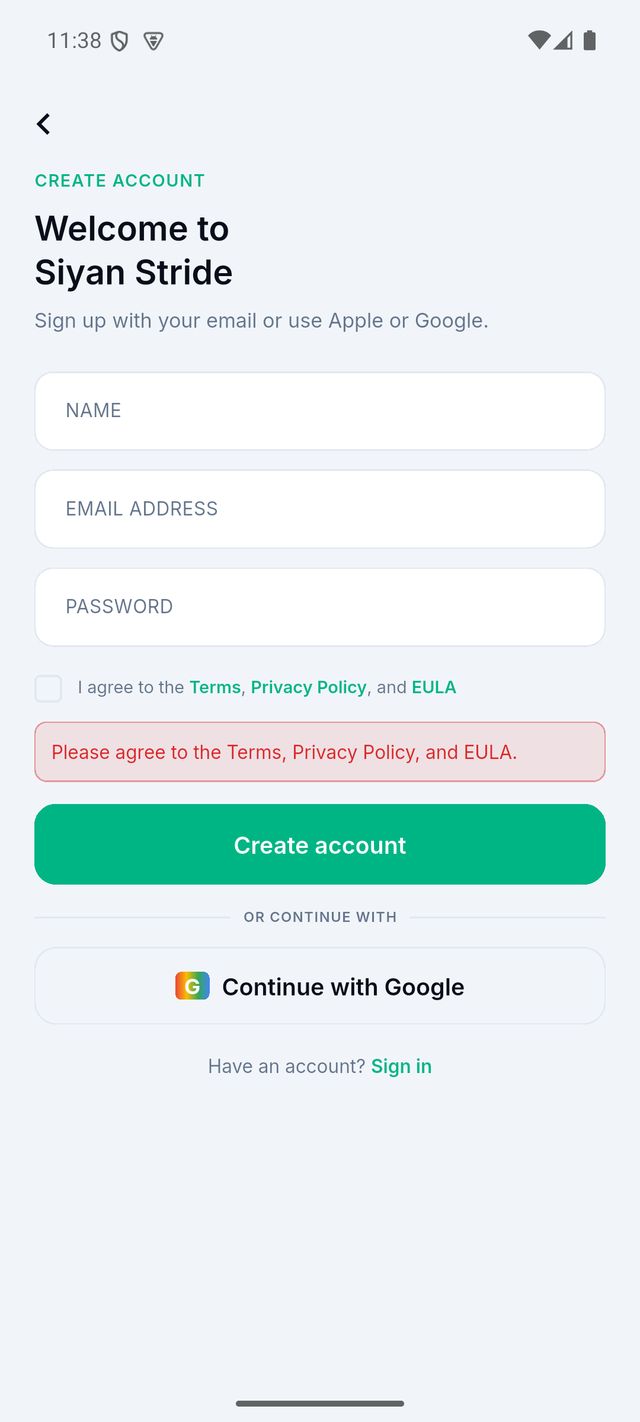
- Tick the box that says you agree to the Terms, Privacy Policy and EULA. (EULA means the rules for using the app.)
- Tap Create account.
- Open your email. Find the message from Siyan Stride and tap the link inside. The link works for 24 hours.
Tip: No email? Look in your spam or junk folder.
I already have an account. How do I sign in?
- Open the app.
- Tap I already have an account.
- Use the same way you used before: Apple, Google, or your email and password.
- Tap Sign in.
Good to know: Use the same sign-in way every time. If you first used Google, use Google again. A different way can make a second, empty account.
I forgot my password. What do I do?
- On the sign-in screen, tap Forgot password?
- Type your email and tap Send reset link.
- Open the email from Siyan Stride and tap the link. Do this soon: the link stops working after about 1 hour.
- The app opens. Type a new password and save it.
Good to know: This works only for accounts made with email. If you signed up with Apple or Google, you do not have a Siyan Stride password. Just tap Continue with Apple or Continue with Google.
What happens the first time I open the app?
The app asks a few short questions. This is called setup. It takes about 2 minutes.
- Connect your walking data. Tap the button to connect Apple Health (iPhone) or Health Connect (Android). Then tap Allow for steps. This is how the app counts your steps.
- Choose useful reminders. Pick if you want a reminder about your goal in the evening.
- Map your walks? This is optional. If you say yes, the app can draw a map of the walks you record. You can skip it.
- What should we call you? Type your name.
- Pick a goal that feels honest. Choose a daily step goal. The usual start is 7,000 steps. You can change it any time.
- Pick a plan if you want one, or tap No plan — just walk freely.
Tip: You can tap Skip for now on most steps and do them later in Settings.
How is the app laid out?
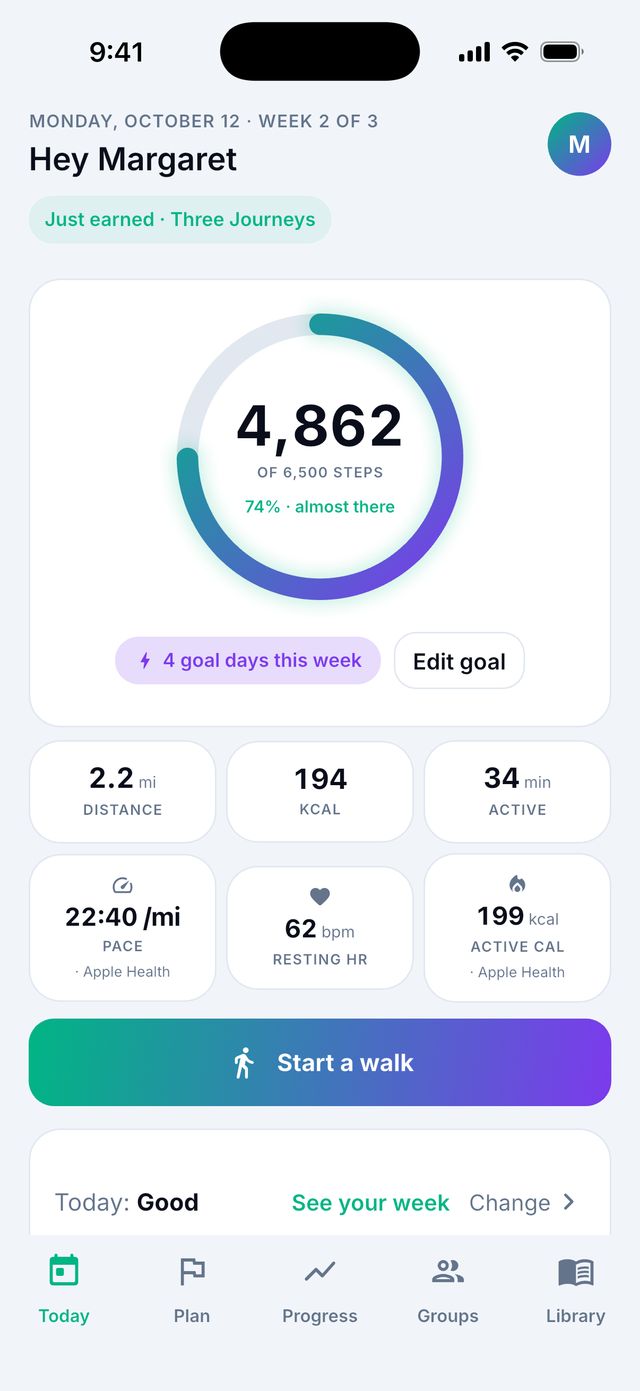
At the bottom of the screen there are 5 tabs. Tap a tab to go there.
Where is my profile and Settings?
Tap the round picture with your first letter at the top right of the screen. This opens your profile, called You. From there, tap the gear icon to open Settings.
- Today: your steps today, your goal, and the button to start a walk.
- Plan: your walking plan, week by week.
- Progress: your history, charts and past walks.
- Groups: walk with friends or family and chat.
- Library: short articles about walking and wellbeing.