Help home The Today screen
The Today screen
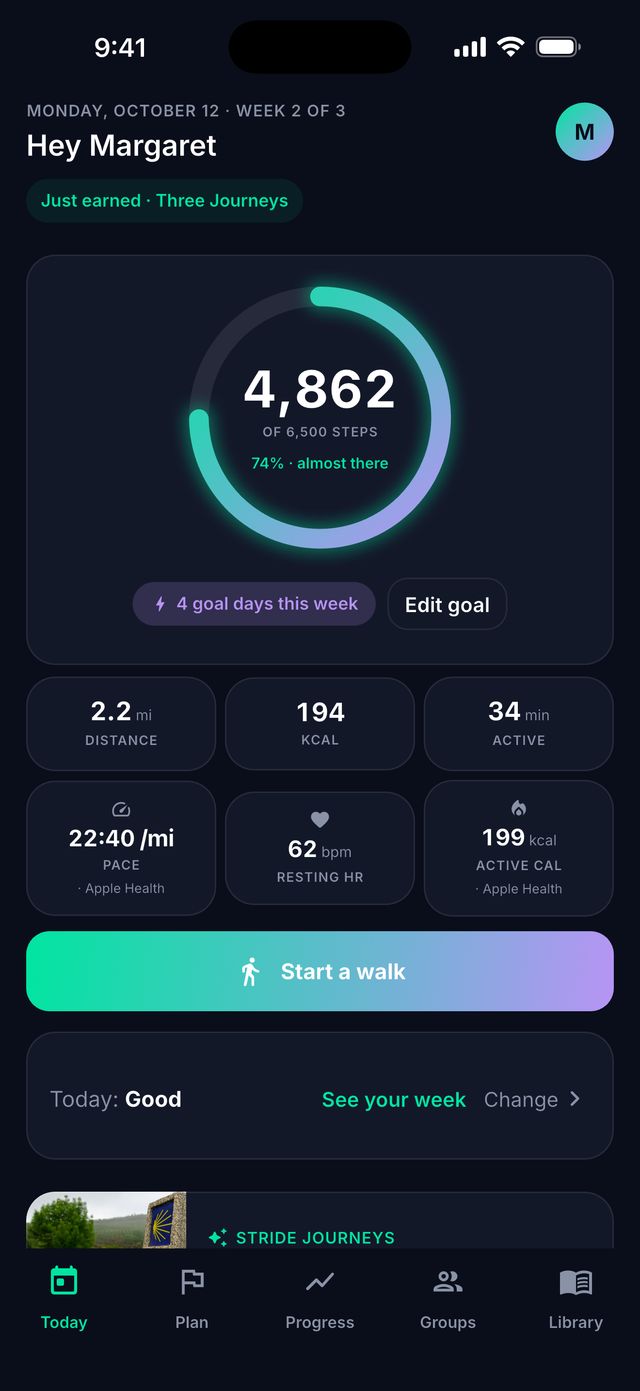
Today is the first tab. It shows how you are doing today, from top to bottom.
What does the big circle show?
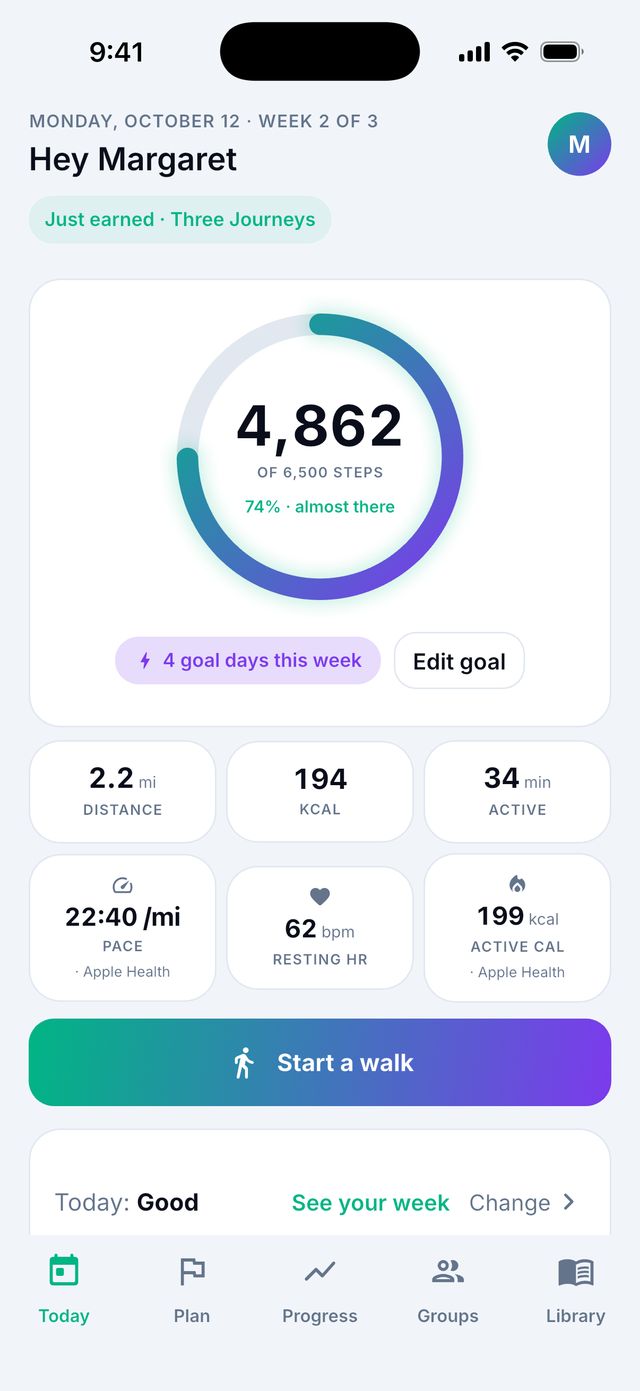
The circle shows your steps today. The big number is your steps. The small text under it shows your goal, for example of 6,500 steps.
The colored line fills up as you walk. When it goes all the way around, you reached your goal for today.
Under the circle you see how many goal days you have this week. A goal day is a day you reached your goal.
How do I change my daily step goal?
- Go to Today.
- Under the circle, tap Edit goal.
- Move the slider. You can pick from 1,000 to 15,000 steps.
- Tap Save goal.
Tip: Pick a goal you can reach on most days. Small wins help you keep going.
Good to know: If you are using a plan, Edit goal opens that plan’s week instead. See Plans and goals.
What are the small boxes under the circle?
- Distance: how far you walked today.
- Kcal: about how many calories you used walking.
- Active: minutes you were moving.
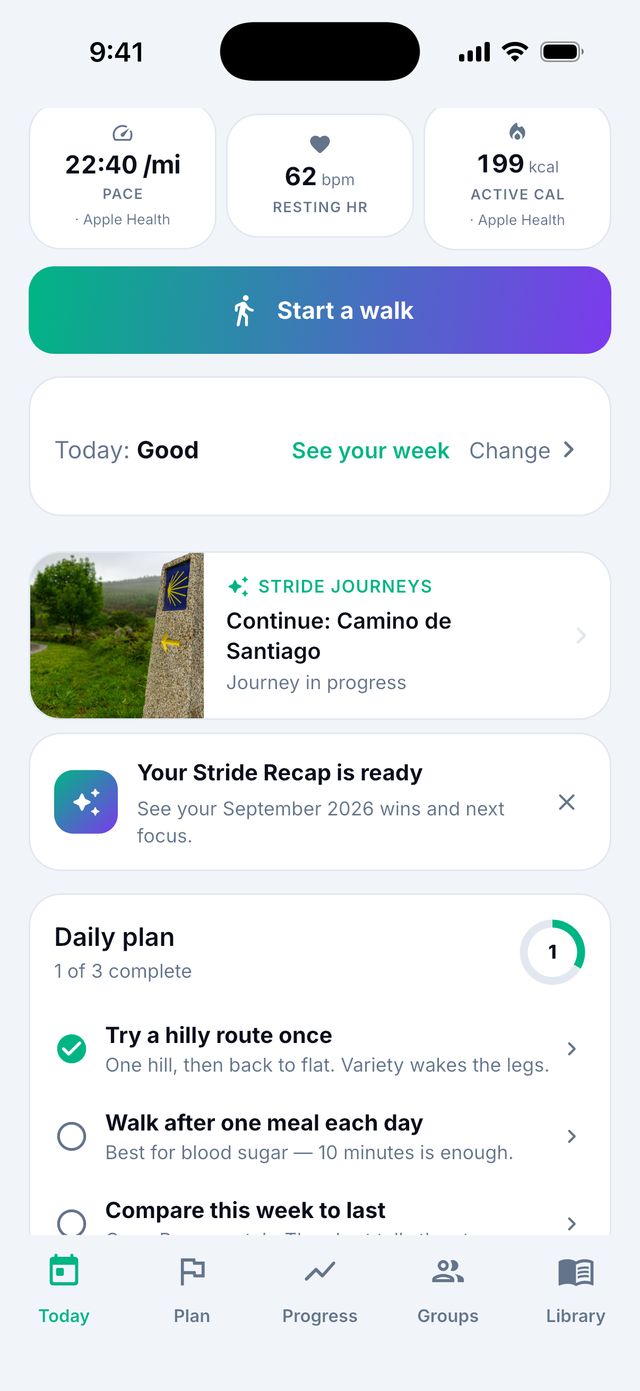
- With Premium you also see Pace, Resting HR (your heart rate when resting) and Active cal from your health app.
Good to know: Distance and calories are estimates. They are good for seeing change over time.
What else is on the Today screen?
Scroll down to see more cards. Not every card shows every day.
- Start a walk: record a walk. See Recording a walk.
- How are you today?: a quick check-in about how you feel.
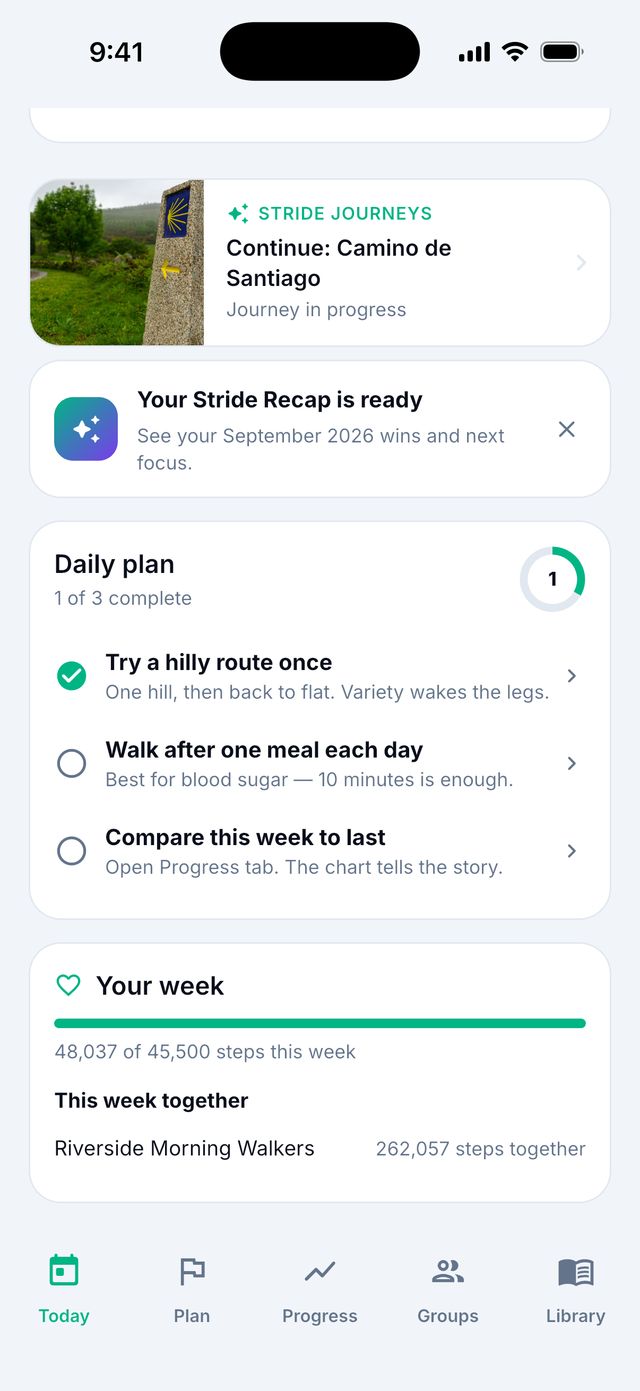
- Stride Journeys: your virtual trip, if you have one.
- Daily plan: 3 small things to do today.
- Your week: your week so far, and your groups.
- Messages when you finish a plan, or when your weekly review is ready.
What is the “Daily plan” card?
It shows 3 small tasks for today, for example: record a walk, check in, or read something short.
Tap a task to do it. The card shows how many you finished, like 1 of 3 complete.
Good to know: The walk task ticks itself when you record a walk or reach your goal.
Can I use a dark screen?
- Open Settings.
- Find Appearance and tap Theme.
- Choose Dark, Light or System. System follows your phone.